
SPELL CHECKER ACTIVATION INSTRUCTIONS
WINDOWS XP

MICROSOFT WORD 97
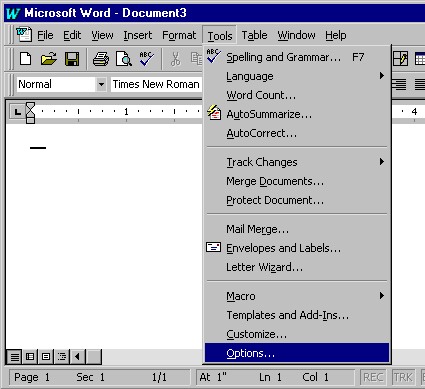
As shown here, run Microsoft Word 97, and open a document that you wish to spell check. Then, select "Tools", and next select "Options."
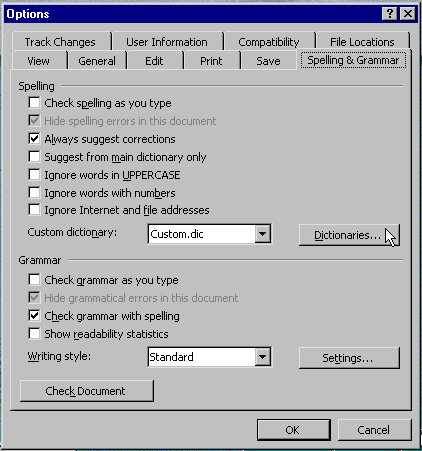
In "Options", select the "Spelling & Grammar" tab. In "Spelling", enable "Always suggest corrections", and disable "Suggest from main dictionary only" box. Then click on the "Dictionaries" button.
In Custom Dictionaries, click the "Add" button, browse to the file path
"C:\Documents and Settings\All Users\01Inductel\spellers\Word97"
and add your new custom dictionary.
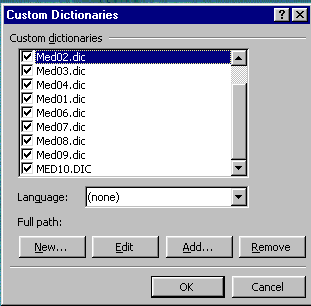
After adding your new custom dictionaries, please put a check by each one you wish to have active during your spell check. Then click on OK to exit "Custom Dictionaries." You are ready to run a spell check. Please note, a maximum of ten custom dictionaries may be active at one time.
You have just seen how to activate your Inductel Speller. You may now exit this tutorial, open Microsoft Word, and actually activate your Inductel Speller.
-------------------------------------------------------------
For information on other Inductel products, upgrades, etc., please visit the Inductel website at www.inductel.com . For technical support, please call Inductel at (408)655-5925, 9am to 5pm Pacific Time. Or send us an email at assistance.inductel@gmail.com 24/7. Or visit our "Help" page.