
|
|
|
SPELL CHECKER ACTIVATION INSTRUCTIONS WINDOWS 11, 10, OR EARLIER |
MICROSOFT POWERPOINT 2024, 2021, 2019, 2016, 2013, 2010, 2007, or 365
These instruction will show you how to add your Inductel custom dictionary to your Microsoft PowerPoint.
1. Open PowerPoint in full screen mode. Then, from the bottom left part of that PowerPoint window, open PowerPoint Options.
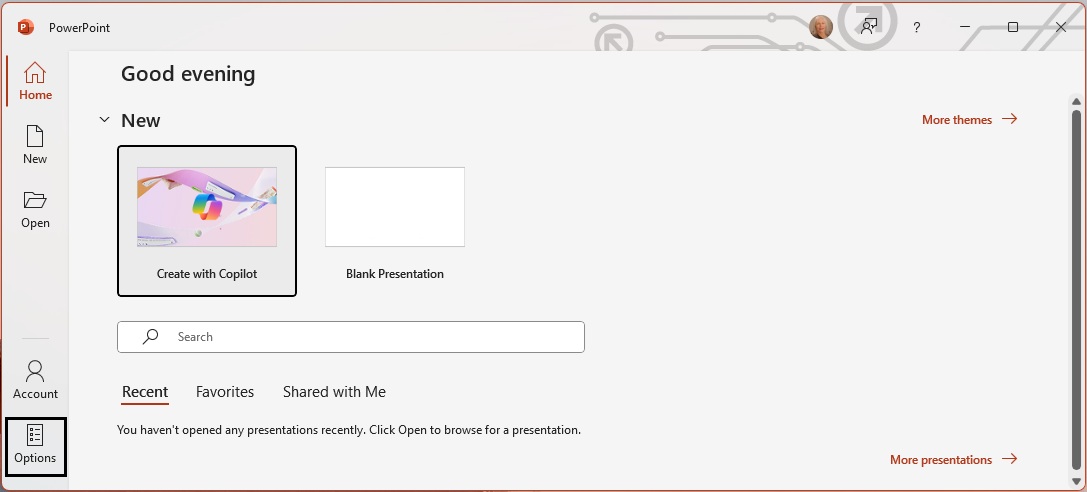
2. In Options, select Proofing then remove any checkmark from "Suggest from main dictionary only." Then click on the "Custom Dictionaries" button.
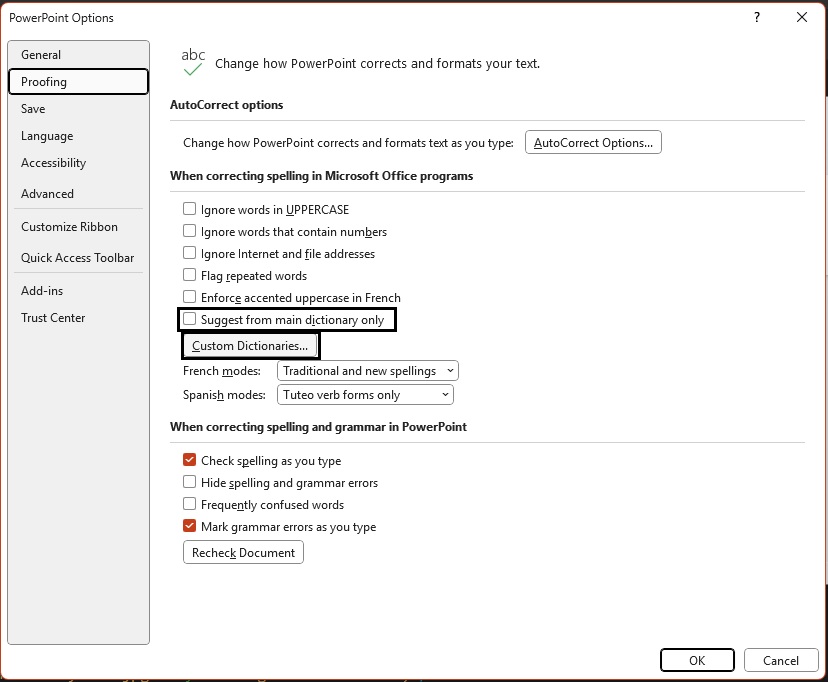
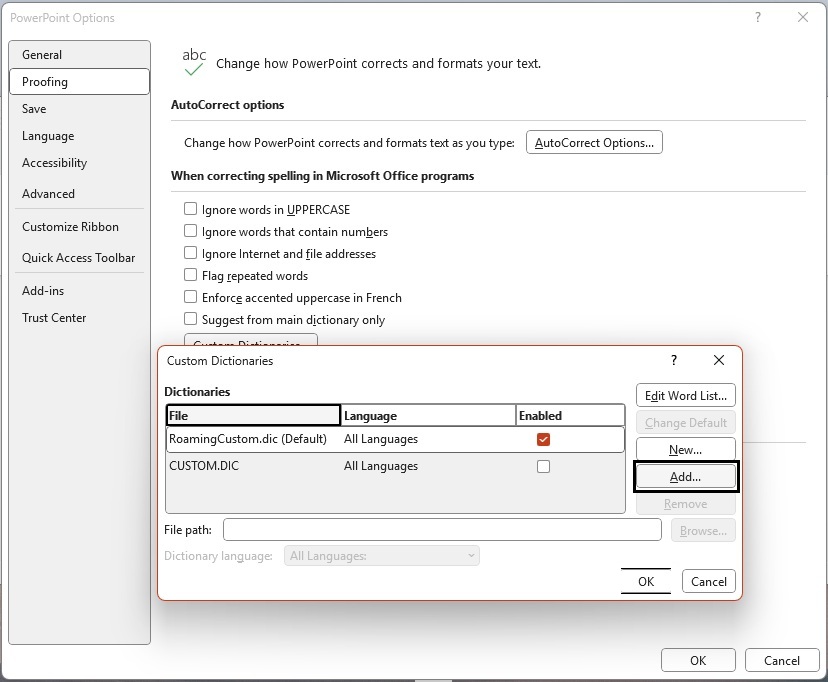
3. In Custom Dictionaries, click on Add.
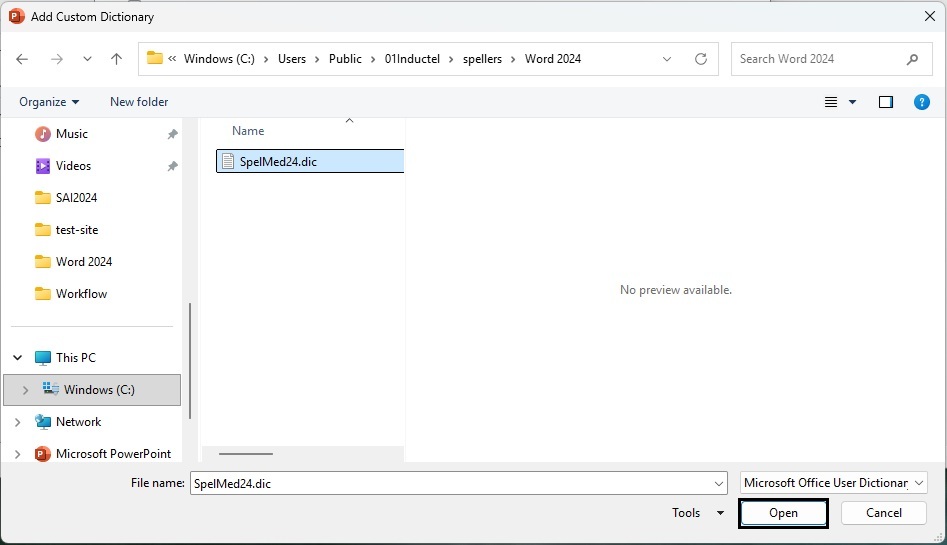
4. Navigate from your Users folder to Word 2024. There is your Inductel custom dictionary. It may be named SpelMed24 or SpelCom24. Select it and click on the "Open" button.
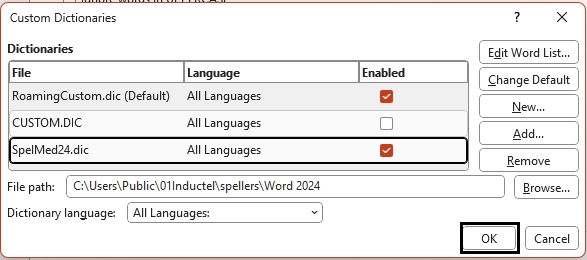
5. Success. Make sure the Inductel custom dictionary is check marked. Make sure the Dictionary language is "All Languages". Now, click on the OK button, and return to your document.
6. Verify that your new custom dictionary is working in Microsoft Word. Key in some test words.
Medical spell checker key in: abdominocyesis, Acetasol, and Zzzquil. If your new speller is working it will pass those words as being correctly spelled.
Combination spell checker key in: abrachia, Celebrex, and sternocleidomastoid. If your new speller is working it will pass those words as being correctly spelled.
7. Done
---------------------------------------------------------------------------------------------------------------------------------------------------------------------
For information on other Inductel products, upgrades, etc., please visit the Inductel website at www.inductel.com . For technical support, please call Inductel at (408)655-5925, 9am to 5pm Pacific Time. Or send us an email at assistance.inductel@gmail.com 24/7. Or visit our Help page.