

SPELL CHECKER ACTIVATION INSTRUCTIONS
|
SPELL CHECKER ACTIVATION INSTRUCTIONS
|
MICROSOFT EXCEL 2008
Activating your new speller is simple. Import a special dictionary from us to your word processing app. Then enable the special dictionary. Here, we provide the instructions how to do that. Please read the following instructions and then execute them using your word processing app. So open your word processing app now. Remember! Follow this set of instructions. Apply them in your word processing app. Let's get started.
1. Copy "Custom Dictionary.zip", from "OfficeMac2008" to "Office 2008" taking care to remove any other "Custom Dictionary" from Office 2008 because the Inductel Custom Dictionary would overwrite it.
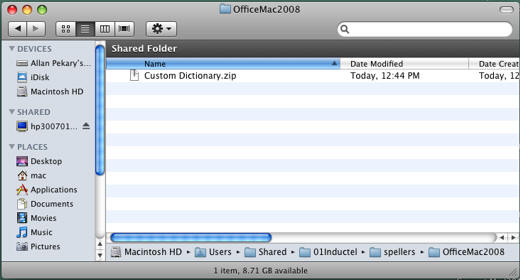
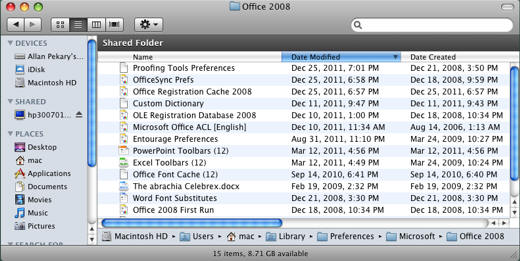
2. After copying, right click on "Custom Dictionary.zip". and expand it using the Archive Utility.

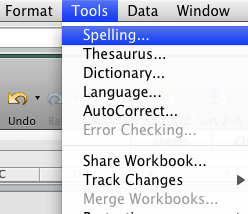
3. Restart your computer. Open an Excel spreadsheet, and run a spell check.
4. Make sure that the "Always suggest" box is checked.
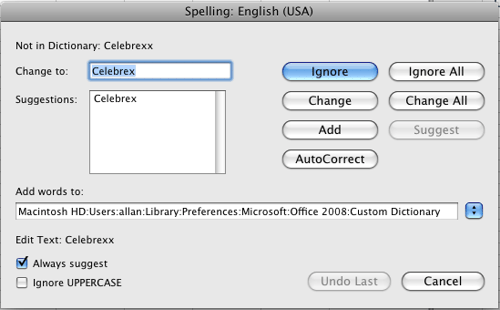
5. Verify that your new spell checker is working. Key in some test words.
Medical spell checker key in: abrachia, Celebrex, and sternocleidomastoid. If your new speller is working it will pass those words as being correctly spelled.
Legal spell checker key in: ab initio, judicata, legitimum, respondere. If your new speller is working it will pass those words as being correctly spelled.
Sci & Tech spell checker key in: abrachia, Celebrex, and sternocleidomastoid. If your new speller is working it will pass those words as being correctly spelled.
Combination spell checker key in: abrachia, Celebrex, and sternocleidomastoid. If your new speller is working it will pass those words as being correctly spelled.
6. Done!
For information on other Inductel products, upgrades, etc., please visit the Inductel website at www.inductel.com . For technical support, please call Inductel at (408)655-5925, 9am to 5pm Pacific Time. Or send us an email at assistance.inductel@gmail.com 24/7. Or visit our "Help" page.